
Turn your Render Kit into a listing photo
Export two files from Contora, give them to an AI image tool, and get a styled product photo of your exact vase. It takes about five minutes.
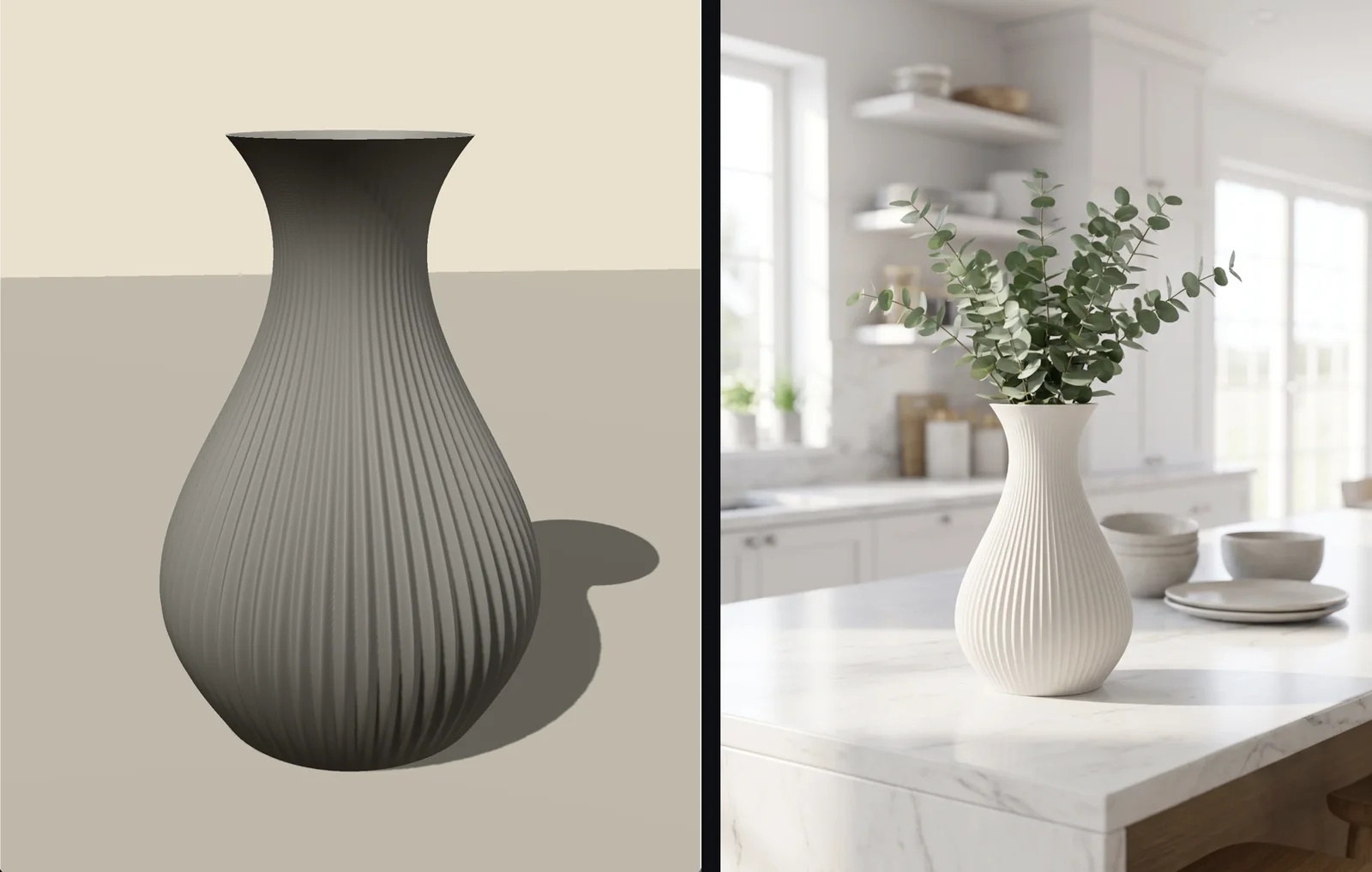
yourvase-clay.pngA clean render of your vase's exact shape. The AI uses it as the reference.
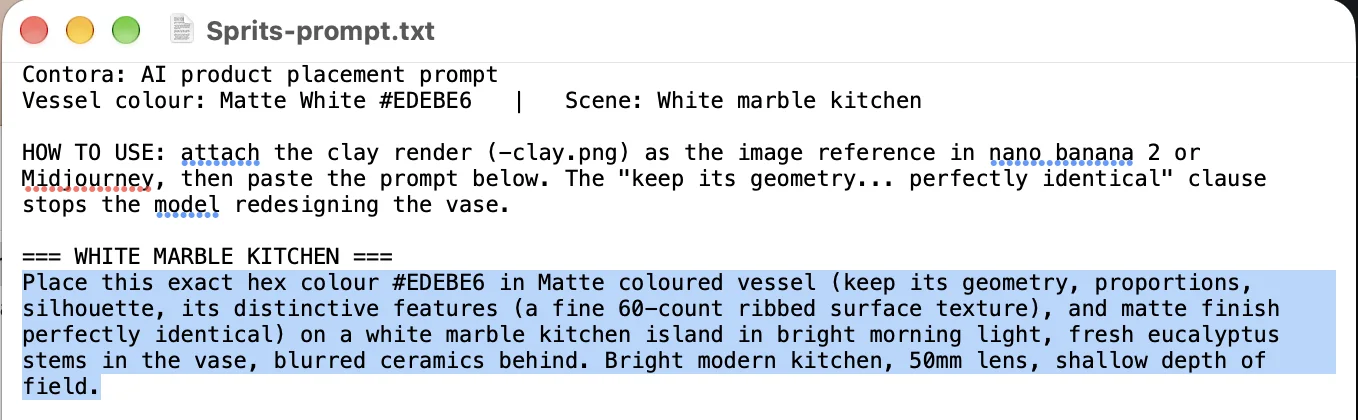
yourvase-prompt.txtThe scene description, with your colour and an instruction to keep the shape identical.
Part 1: Export the Render Kit
In the Contora Designer, with your vase open.
-
Pick your colour, then click Export
Choose the vase colour from the swatches at the bottom left of the viewport first. The prompt is written for that colour. Then click Export at the top right.
-
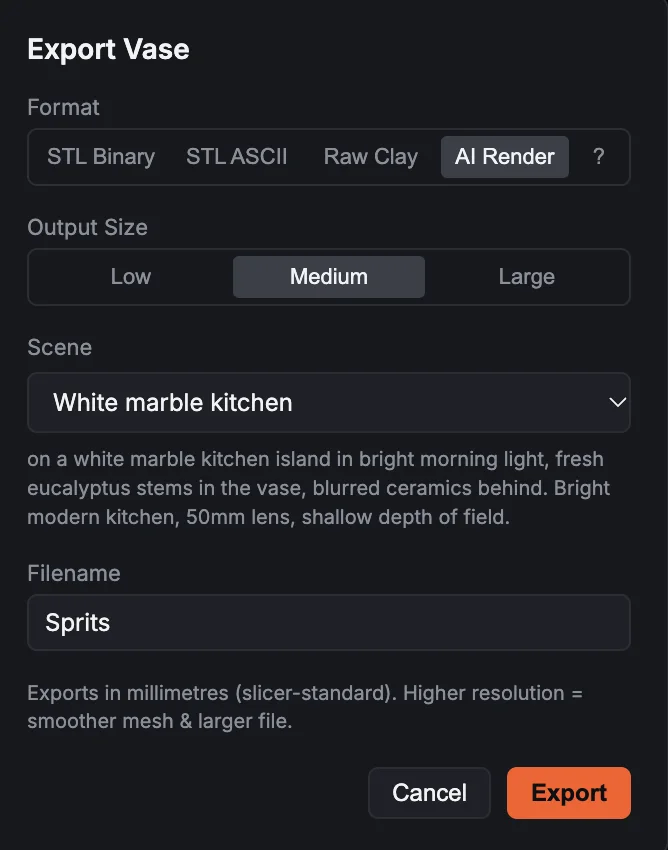
Choose AI Render and a scene
- Format: AI Render.
- Output size: Medium suits most tools. Large gives the AI more detail to work from.
- Scene: pick one. The description underneath shows what the photo will look like.
- Filename: name your vase. Both files use this name.
Click Export.
-
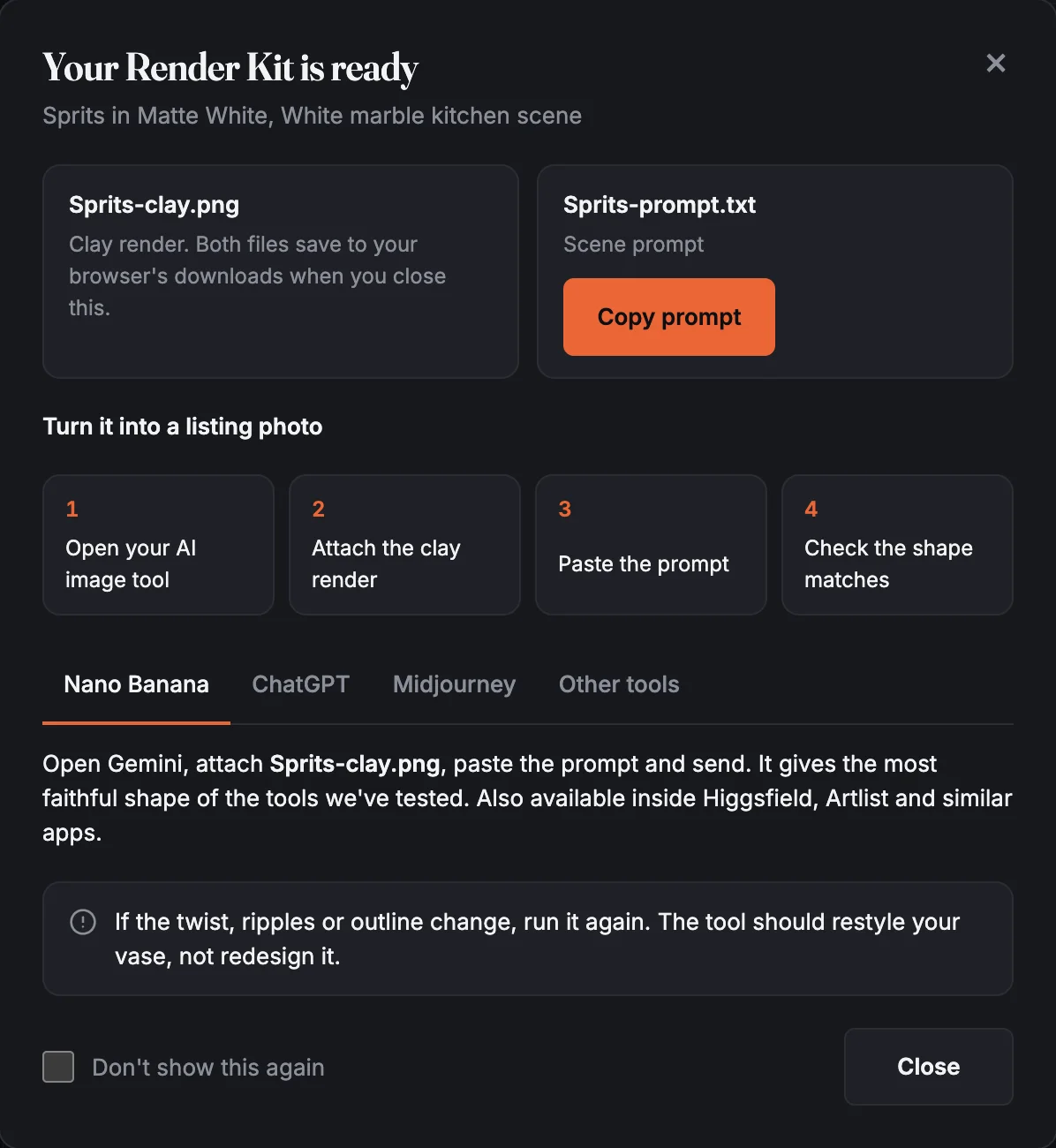
Copy the prompt
The Your Render Kit is ready panel opens. Click Copy prompt now. That puts the scene text on your clipboard, ready to paste.
When you close the panel, both files save to your downloads. Safari puts them straight in your Downloads folder. Chrome may ask where to save them; choose Downloads so they're easy to find.
-
Find your two files
Open your Downloads folder. You'll see the -clay.png and -prompt.txt files with your vase's name.
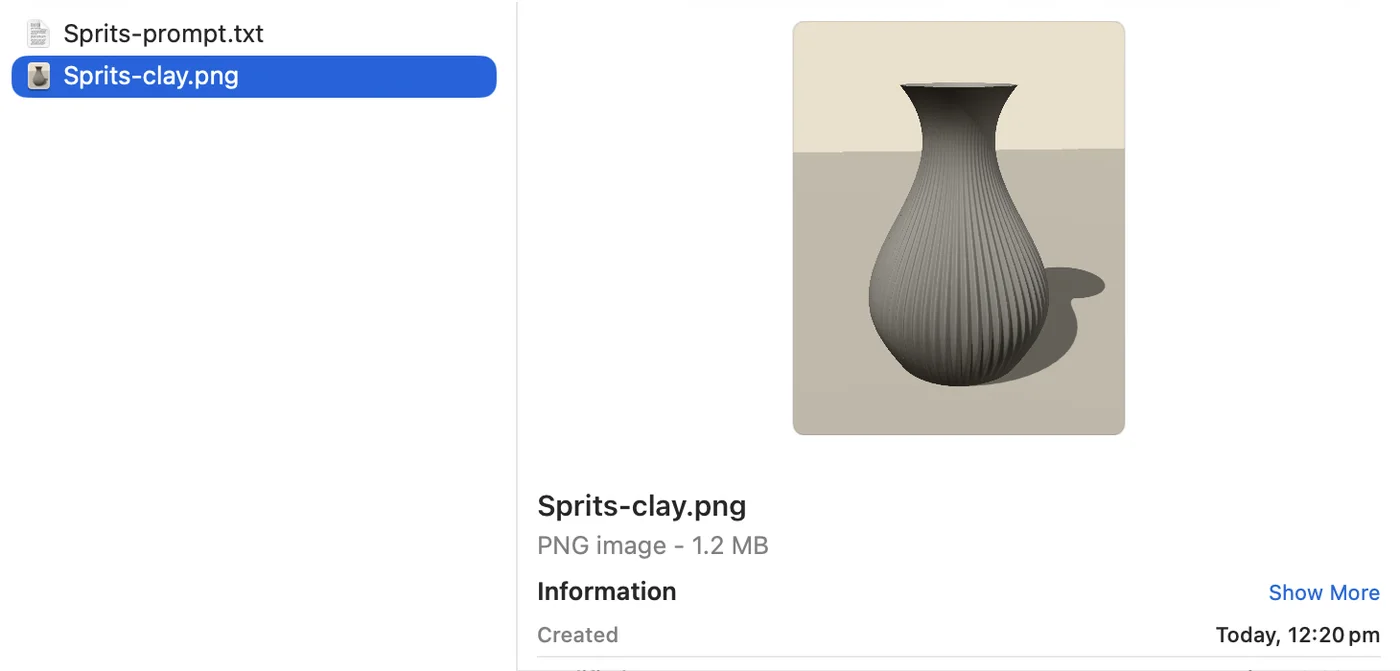
Closed the panel before copying? Open the -prompt.txt file and copy only the paragraph under the scene heading (the line in capitals between === marks). Leave out the header and the "How to use" lines.
Part 2: Make the photo
Use a tool that runs Google's Nano Banana model. It holds your vase's shape better than the others we've tested.
-
Open Google AI Studio
Go to aistudio.google.com and sign in with your Google account.
-
Choose a Nano Banana model
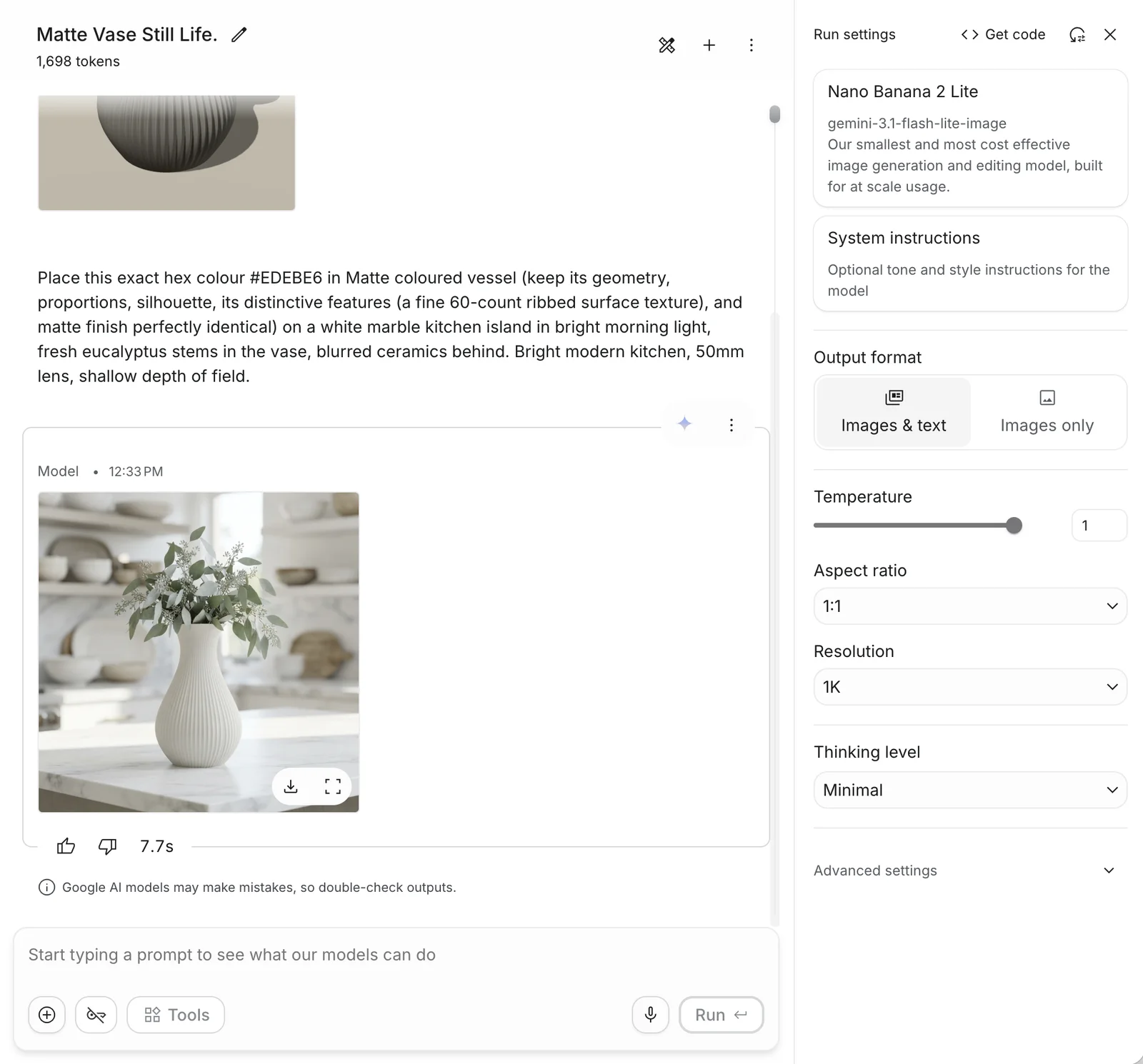
In Run settings on the right, click the model card and choose a Nano Banana model. Then set the Aspect ratio (1:1 for square listing photos) and Resolution.
-
Attach the clay render and paste the prompt
Click the + button at the left of the prompt box and add your -clay.png file, or drag it in from your Downloads folder. Click in the prompt box and paste (Cmd+V on a Mac, Ctrl+V on Windows).
-
Click Run
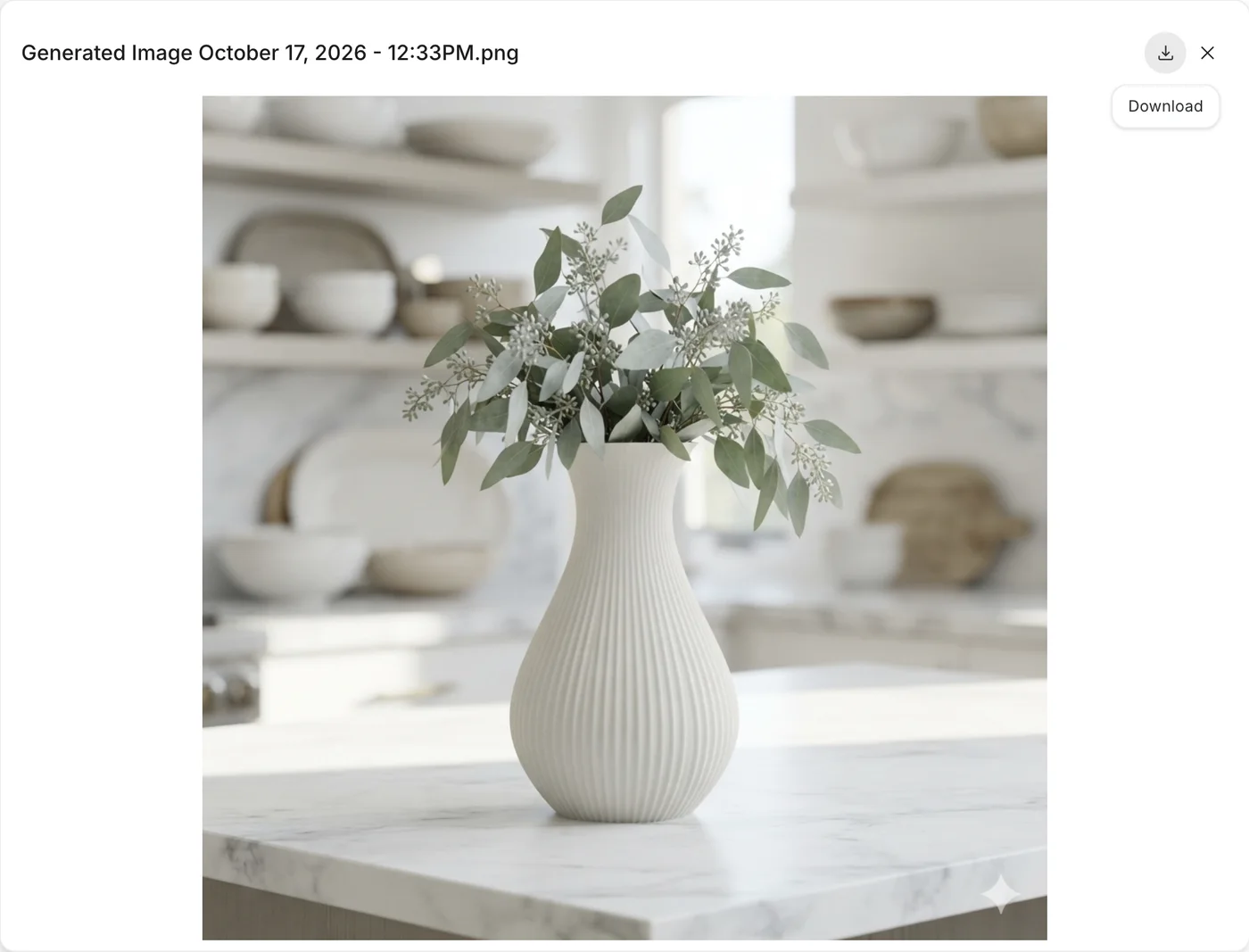
Your photo appears in a few seconds.
-
Download it
Click the image to open it, then click the download icon at the top right.
-
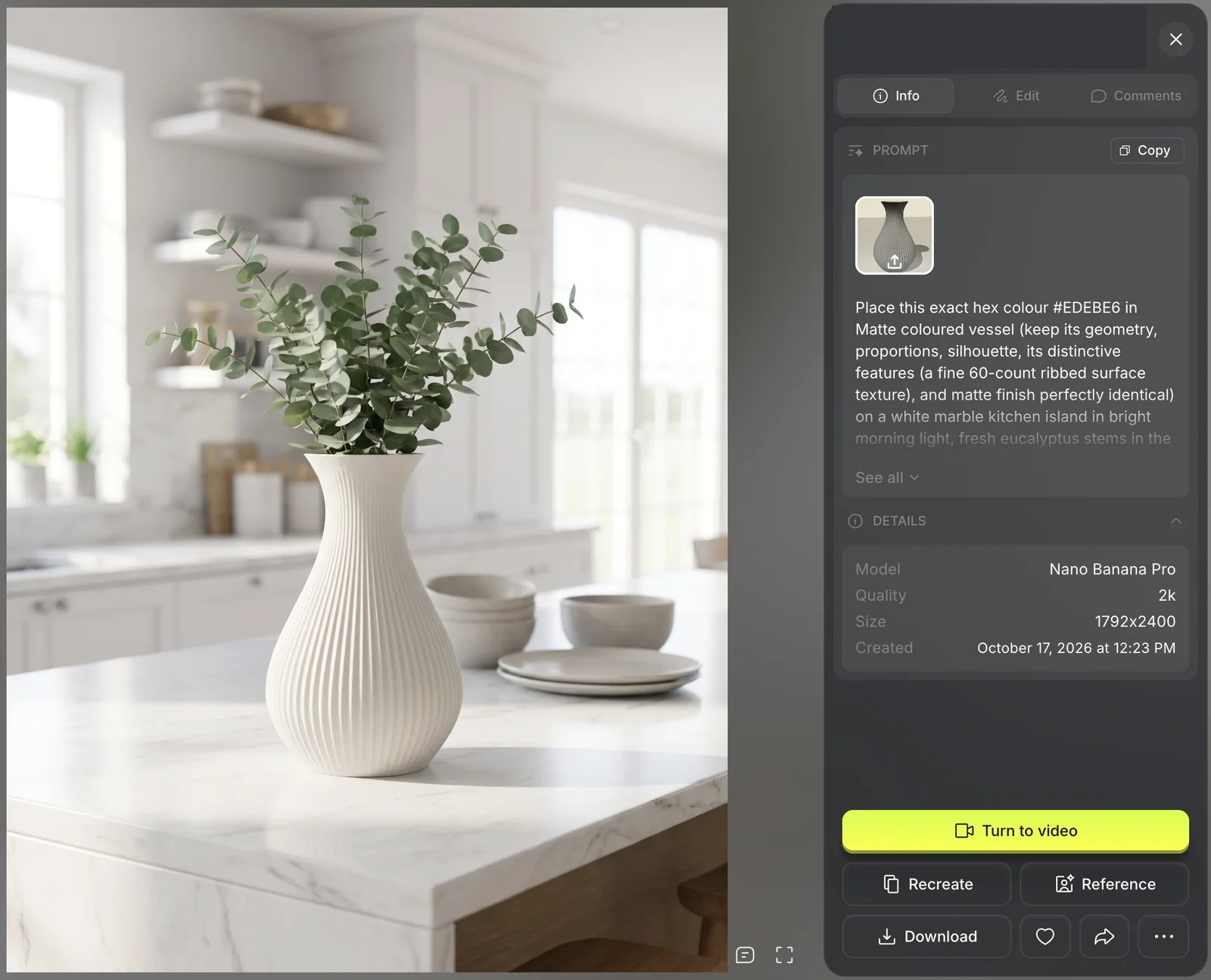
Open Higgsfield's image tool
Sign in at higgsfield.ai and click Image in the top menu. Higgsfield is a paid service that charges credits per image.
-
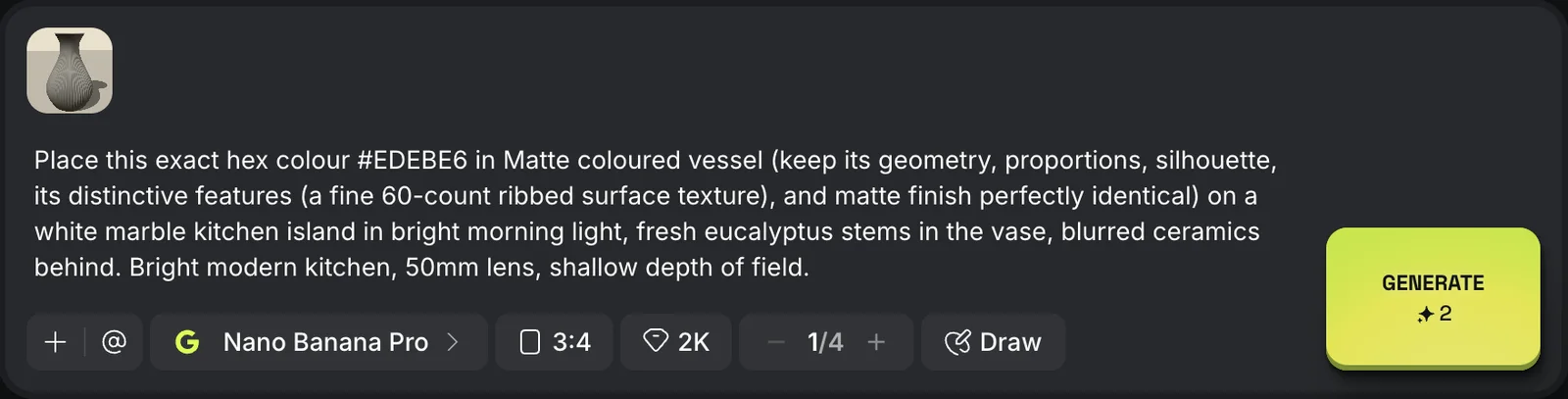
Set up the prompt bar
- Click the model button and choose Nano Banana Pro.
- Click + and add your -clay.png file. A thumbnail appears above the prompt.
- Paste the prompt into the text box.
- Set the shape (3:4 suits most listings) and the quality (2K for listing photos).
-
Click Generate
When it finishes, click the image to open it.
-
Download it
Click Download at the bottom of the panel on the right.
Any image tool that takes a reference image works the same way: attach the clay render first, then paste the prompt.
- Gemini app, Artlist and similar apps: choose a Nano Banana model if offered, attach the clay render, paste the prompt.
- ChatGPT: start a new chat, attach the clay render, paste the prompt and ask for an image.
- Midjourney: add the clay render as an image reference, then paste the prompt.
Results vary between tools. If the shape drifts, try a Nano Banana tool.
Part 3: Check the shape
Put the photo next to the clay render before you use it. The AI should restyle your vase, not redesign it.
Shape changed? Run it again. Each run gives a different result, and most vases hold their shape within a try or two. Very twisted or complex forms are the hardest for the AI, so expect a few more tries with those.
Using Claude?
Our two Claude skills can render a whole collection for you, and turn any room photo into a new scene for your vases.
How to use Claude with Contora, and install the Contora skills